NavWithNav

The premier knowledge-sharing hub for Microsoft Dynamics 365 Business Central developers, architects, and ERP professionals.

Back to Series
Business Central

How to Use FilterGroup in AL to Isolate Programmatic Filters in Business Central

When writing AL code in Business Central, applying filters directly on a record can silently conflict with filters your users have already set in the UI. This post shows you how to use FilterGroup to keep your programmatic filters isolated, predictable, and safe — without breaking anything the user has configured.

Nitin VermaApril 11, 2026 5 min read
["Business Central""AL Language""FilterGroup""Record Filters""Dynamics 365""BC Development""Microsoft ERP""AL Tips""NAV Development""Business Central Customizatio"]
How to Use FilterGroup in AL to Isolate Programmatic Filters in Business Central
The problem
When you apply a filter programmatically on a record (e.g., in OnFindRecord or a codeunit), it lands in filter group 0 — the same group the user's own filters live in. This means your code can accidentally overwrite or conflict with filters the user has set through the UI.

The solution
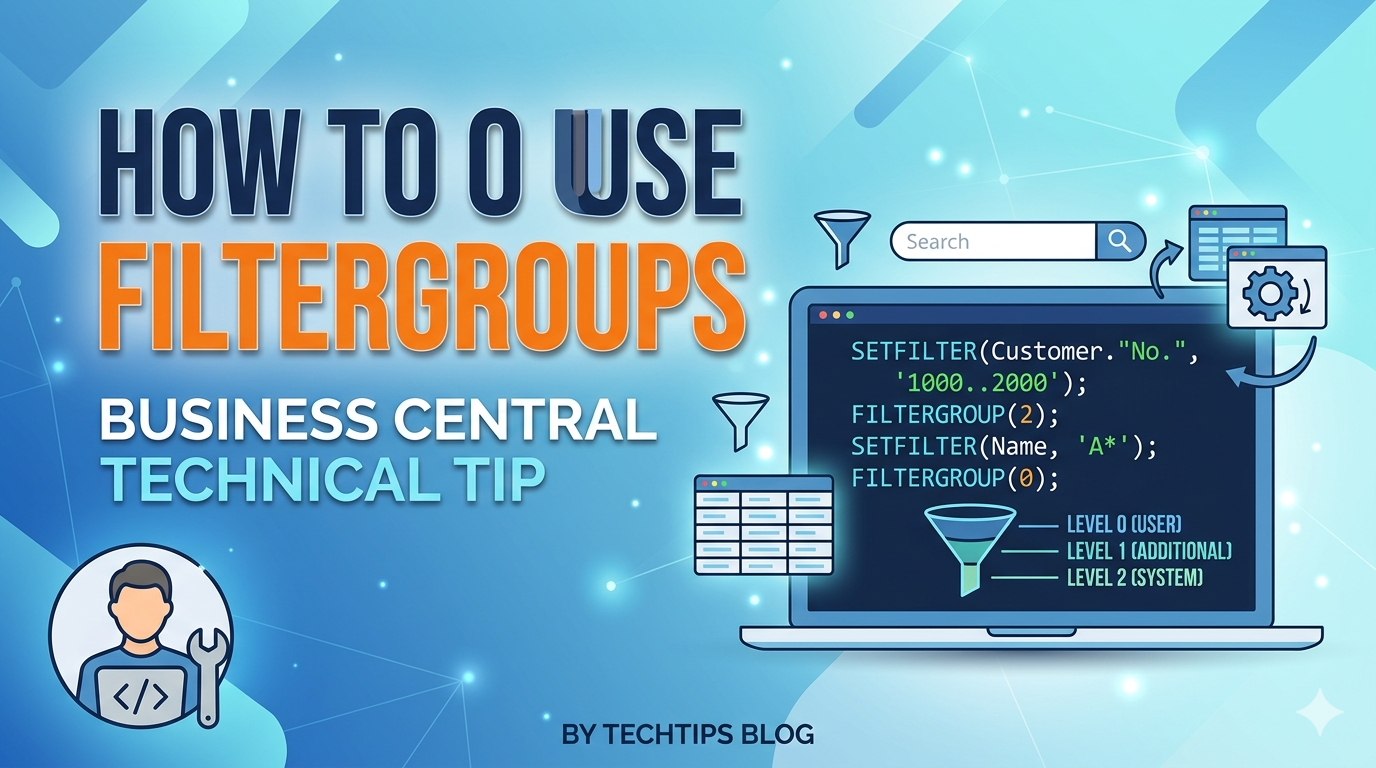
Use FilterGroup(2) to isolate your programmatic filters in a separate filter group. Groups stack — all active groups are ANDed together — so the record still respects user filters without them interfering with each other.


AL (Business Central)
            
            // AL example — isolate a programmatic filter in FilterGroup 2
var
    Customer: Record Customer;
begin
    Customer.FilterGroup(2);          // Switch to isolated group
    Customer.SetRange(Blocked, Customer.Blocked::" ");  // Not-blocked only
    Customer.FilterGroup(0);          // Back to default group

    // User can still apply their own filters in group 0
    // Both sets of filters will be respected simultaneously
    if Customer.FindSet() then
        repeat
            // process records
        until Customer.Next() = 0;
end;



Tip: Group 1 is reserved for BC's own system filters (e.g., company, data access). Always use group 2 or higher for your own programmatic filters to avoid conflicts.


This is a common gotcha for BC developers. When you write SetRange or SetFilter on a record in code, it defaults to filter group 0 — the same group where the user's UI filters land. This can cause subtle bugs where your code stomps on the user's filters or vice versa.

The fix is simple but not obvious: call FilterGroup(2) before applying your code's filters, then switch back to FilterGroup(0). Business Central stacks all active filter groups using AND logic, so both sets are respected independently.

Key filter group reference:

  • Group 0 — user-facing filters (UI + code default)
  • Group 1 — reserved by BC system (company scope, security filters)
  • Group 2+ — safe to use for developer programmatic filters

This is especially valuable when writing flowfilters, page triggers, or report data items where you need to enforce business rules without overriding what the user has selected. Let me know if you'd like a different tip or a variation of this one!


Happy Coding!


0
0

Discussion (0)

Leave a comment

No comments yet. Be the first to share your thoughts!

Newsletter

Stay updated with the latest Business Central development tips.

Nitin Verma

Nitin Verma

Solution Architect

Extensive experience specializing in Microsoft Dynamics NAV, Business Central, Power Platform, and ERP Architecture.

Read full bio

Search Articles

Monthly Archive

Loading...

Visitor Stats