- Email the Customer Summary Aging report through a job queue.
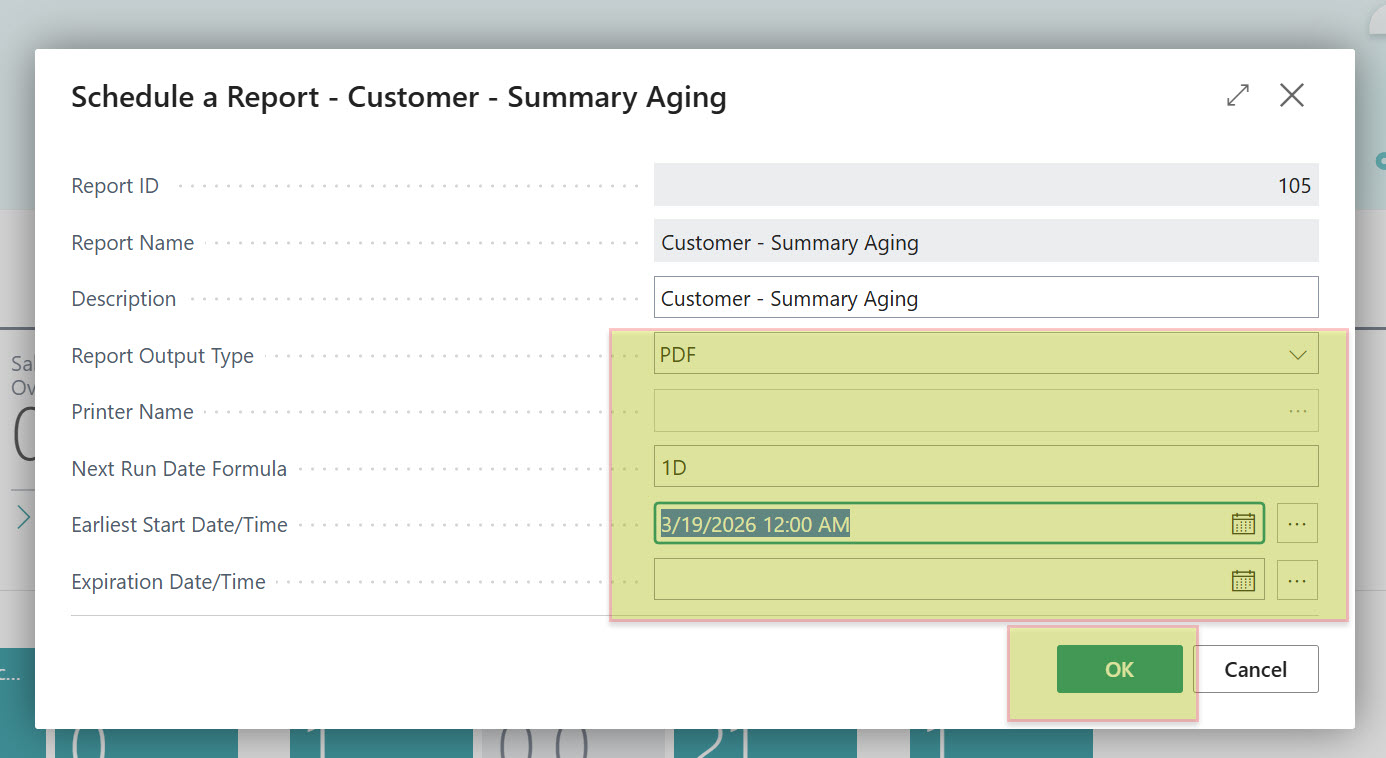
1. Using Report Inbox/Scheduled Reports (BC Cloud/SaaS). You can schedule reports directly:
Go to the Customer - Summary Aging report (Report 105)
Click "Send to" → "Schedule"


Now Go to "Job Queue Entry" Page, you will see system has created the Job queue for the schedule you set.

- You will see job queue as per above image, Click on "Run Once (foreground)" to check if its working fine.
- After running the job queue go to "Report Inbox"
- You can download the report from the "Report Inbox" in the format you had selected during schedule, its was PDF in my case.

Now schedule this report by email.
Notes:
Email Setup Requirements:
SMTP must be configured in BC (SMTP Mail Setup page).
Email accounts must be set up (Email Accounts page in BC).
The job queue must include code to send the email after generating the report.
Below is codeunit I have created to send the aging report.
codeunit 50100 "Email Aging Report"
{
    procedure SendAgingReportByEmail(CustomerNo: Code[20])
    var
        Customer: Record Customer;
        TempBlob: Codeunit "Temp Blob";
        EmailMessage: Codeunit "Email Message";
        Email: Codeunit Email;
        InStr: InStream;
        OutStr: OutStream;
    begin
        // Generate the report
        Customer.SetRange("No.", CustomerNo);
        TempBlob.CreateOutStream(OutStr);
        Report.SaveAs(Report::"Customer - Summary Aging", '', ReportFormat::Pdf, OutStr, Customer);

        // Prepare email
        TempBlob.CreateInStream(InStr);
        EmailMessage.Create('[email protected]', 'Aging Report', 'Please find attached', false);
        EmailMessage.AddAttachment('AgingReport.pdf', 'application/pdf', InStr);

        // Send email
        Email.Send(EmailMessage, Enum::"Email Scenario"::Default);
    end;
}
Then schedule this codeunit via a job queue entry.
Notes:
Job Queue must be running.
Permissions: The job queue user needs permissions to run reports and send emails.
Email configuration: SMTP or Microsoft 365 email must be properly configured.
Report filters: You may want to set up different job queue entries for different customer segments.
Happy Coding;